Feb 7, 2009


Feb 6, 2009
Tally ODBC with Microsoft Excel

Tally ODBC extracts data from Tally and designs the reports in MS Excel. The steps to be followed are:
Start Tally and keep it open till the Mail Merge process is completed.
Ensure ODBC Server is displayed on Tally’s calculator pane.
Open MS Excel.
Click on Data > Get External Data > New Database Query from the Menu.
Select TallyODBC from the Choose Data Source dialog box.
The screen appears as:

Query Wizard displays fields from Tally. Select and click the “>” button to select fields required in your query.
The screen appears as:

Use the Filter Data dialog box to limit the data to suit your requirement.
Sort your data in ascending or descending order in the Sort Order dialog box.
Click on Finish to complete the Query process.
Click on OK from the Returning External Data to Microsoft Excel dialog box to display the selected columns on the Excel sheet.
The screen appears as:

Creating ledger a ledger in tally 9
Creation of a Ledger account
The information required for creation of ledgers depends on the features opted by you. If the setting of the Accounting Features [F:11] of your company is No for all options, your ledger creation screen would need minimal information.
It should be noted that Tally automatically creates two ledger accounts, viz., Cash (under Cash-in-hand) and Profit & Loss Account (direct Primary account). It does not make any other presumptions. You must create all other account
heads. There are no restrictions in ledger creation except that you cannot create another Profit & Loss A/c (actually an account that behaves like one). You may create any number of Cash accounts (by another name like "Petty Cash" ).
Gateway of Tally > Accounts Info. > Ledgers > Single Create


Jan 31, 2009
How to send an Email from tally
The E-mail is the most widely used facility on the Internet. It saves time and cost of postage. Use the email feature in Tally.
• E-mail any Tally report or document like invoices or purchase orders
• Post reminder letters and statement of accounts
The following example illustrates the use of this feature in Tally
E-mail a Invoice
To send a Invoice to a customer by email:
1. Gateway of Tally > Display > Accounts Books> Sales Register >
2. Select the required Invoice from the sales Vouchers
3. Click on Email from the button bar or press Alt+M
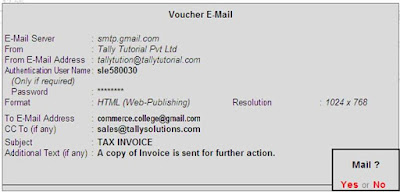
1. The fields on the Mailing Invoice form are automatically completed if you have given the required information during creation of the master records. Select No or press Backspace to change/modify the entries. Select Yes to accept.
2. The E-mail Server field is highlighted next. This is a mandatory field. The first time you use this feature in Tally, enter the name of your SMTP server, example: mail.btinternet.com. Subsequently, Tally will automatically display the SMTP server name. Refer to your Internet Service Provider (ISP) or network administrator for further queries.
3. The From field displays the name of your company entered in the Company Creation screen and stored in the Company Information Master records. You can also modify the default information. Press Enter.
4. The From E-mail Address field displays the e-mail address entered in the Company Information Master data. Enter your email address, if you have not done so while creating a company, or if you want to change the id.
• Enter the user name and password in Authentication User Name (Only if required) and Password field respectively if the mail server requires authentication.
• In the Format field a pop-up screen lists the three formats in which you can generate your email:
o ASCII (Comma delimited)
o HTML (web-publishing)
o XML (data interchange)
Select the type that suits your recipient.
1. To E-mail Address field is a mandatory field.
It displays the recipient’s email address as entered in the Mailing and Related details during ledger creation. Enter the address if you have not done so while creating the ledger or if you want to modify the information.
1. Type the email address of another recipient to whom you want to send a carbon copy of the email in the CC (if any) field.
1. The Subject field is filled by default and displays the subject of your mail. You can change it to a subject of your choice.
• Any text you enter in the Additional Text field precedes the report in the recipient’s mail program. You can use this field to type a message to the recipient.
• Additional Options provided in the form are:
o Include Post-Dated Transactions?- Set this option to Yes to include post-dated transactions.
Note: Additional Options may vary depending upon the type of report you want to email.
1. Print Preview: Use the Print Preview screen to view the document before emailing. This shows how the document appears in the recipient’s email
• E-mail any Tally report or document like invoices or purchase orders
• Post reminder letters and statement of accounts
The following example illustrates the use of this feature in Tally
E-mail a Invoice
To send a Invoice to a customer by email:
1. Gateway of Tally > Display > Accounts Books> Sales Register >
2. Select the required Invoice from the sales Vouchers
3. Click on Email from the button bar or press Alt+M
1. The fields on the Mailing Invoice form are automatically completed if you have given the required information during creation of the master records. Select No or press Backspace to change/modify the entries. Select Yes to accept.
2. The E-mail Server field is highlighted next. This is a mandatory field. The first time you use this feature in Tally, enter the name of your SMTP server, example: mail.btinternet.com. Subsequently, Tally will automatically display the SMTP server name. Refer to your Internet Service Provider (ISP) or network administrator for further queries.
3. The From field displays the name of your company entered in the Company Creation screen and stored in the Company Information Master records. You can also modify the default information. Press Enter.
4. The From E-mail Address field displays the e-mail address entered in the Company Information Master data. Enter your email address, if you have not done so while creating a company, or if you want to change the id.
• Enter the user name and password in Authentication User Name (Only if required) and Password field respectively if the mail server requires authentication.
• In the Format field a pop-up screen lists the three formats in which you can generate your email:
o ASCII (Comma delimited)
o HTML (web-publishing)
o XML (data interchange)
Select the type that suits your recipient.
1. To E-mail Address field is a mandatory field.
It displays the recipient’s email address as entered in the Mailing and Related details during ledger creation. Enter the address if you have not done so while creating the ledger or if you want to modify the information.
1. Type the email address of another recipient to whom you want to send a carbon copy of the email in the CC (if any) field.
1. The Subject field is filled by default and displays the subject of your mail. You can change it to a subject of your choice.
• Any text you enter in the Additional Text field precedes the report in the recipient’s mail program. You can use this field to type a message to the recipient.
• Additional Options provided in the form are:
o Include Post-Dated Transactions?- Set this option to Yes to include post-dated transactions.
Note: Additional Options may vary depending upon the type of report you want to email.
1. Print Preview: Use the Print Preview screen to view the document before emailing. This shows how the document appears in the recipient’s email
Subscribe to:
Posts (Atom)


 Posts
Posts

